PDF markup and measurement for field crews

Mark up and measure drawings on site.

Clouds, callouts, photos and measurements go straight onto the PDF, on your iPad, phone or PC. Your office opens the same markups and keeps working on them.

  • No paper set to photograph.
  • No notes to type up tonight.
  • No signal needed.

Buy online. Access details are emailed after purchase.

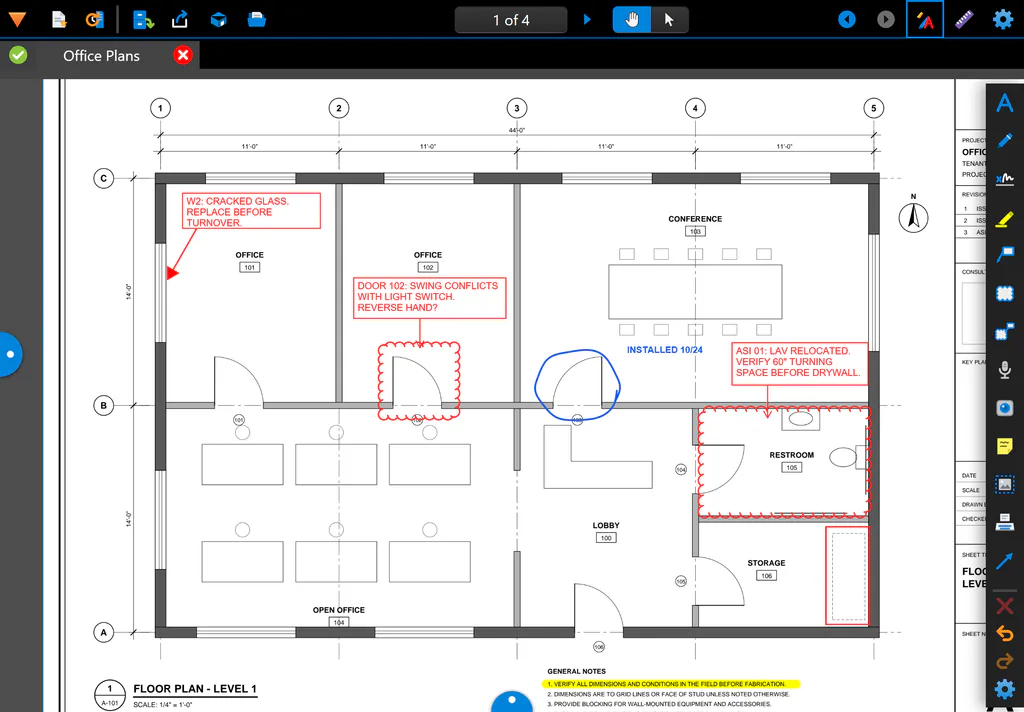
FIELDCHECK on an iPad in landscape: a floor plan with red revision clouds and callouts, a field note pointing at a cracked window, a door circled in blue and marked installed, and a highlighted general note.
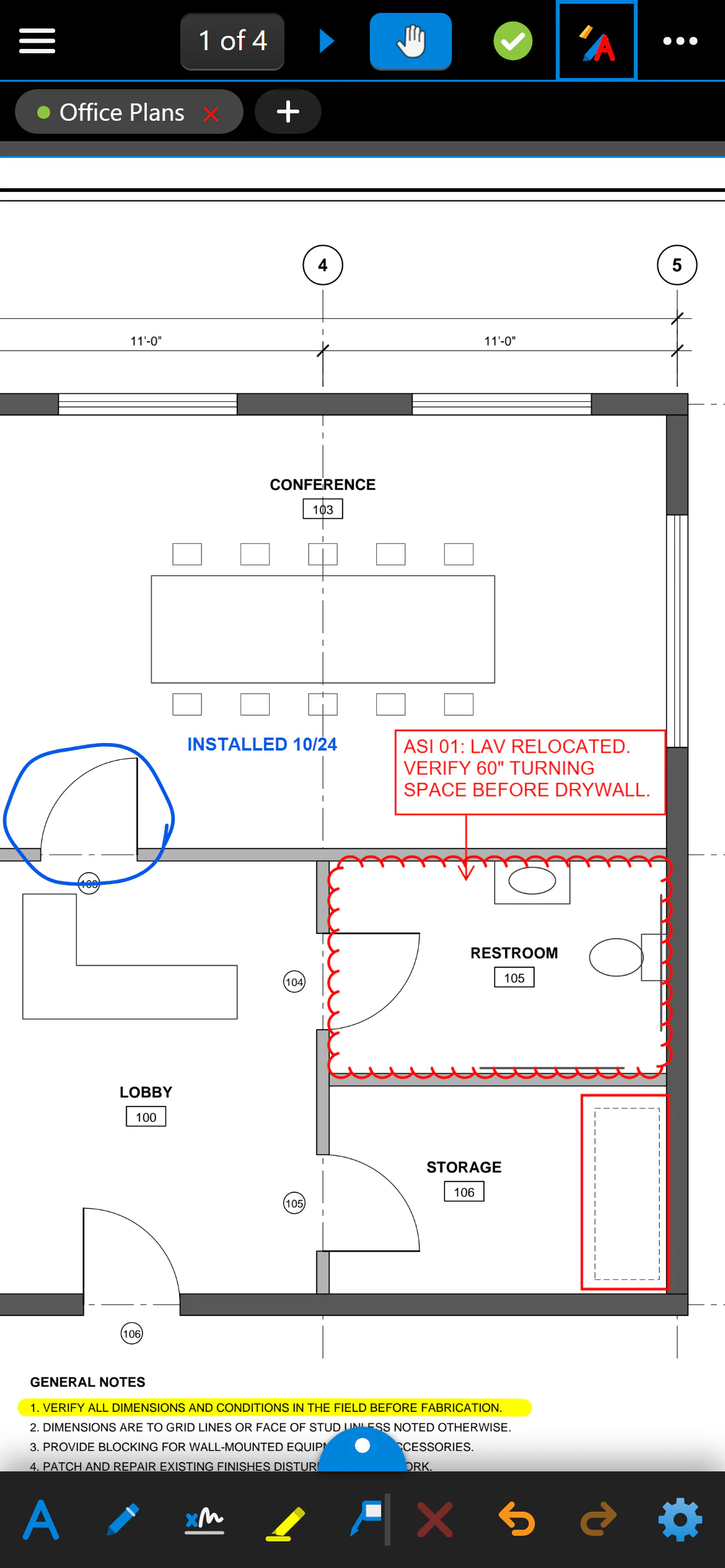
The same floor plan on an iPhone, zoomed in on the restroom cloud and callout.

On site today

The set lives in the office. The work happens out here.

  • Notes go on a paper set.
  • Photos pile up in a camera roll.
  • Somebody types it all up again after hours.
  • Markups come back flattened, and the office draws them again.

FIELDCHECK keeps the whole job on one PDF, from the walk to the desk.

  1. Capture it once

    Clouds, callouts, photos and measurements go on the sheet where you see the issue. That is the record.

  2. Hand it back ready to use

    Every markup is a standard PDF annotation, so the office opens it as a regular, editable markup.

  3. Keep going without a signal

    Drawings live on the device. Mark up, measure and save in a dead zone; nothing waits for a connection.

Find your way around

Desktop-grade markup, built for a fingertip

Every tool a field engineer, inspector or superintendent reaches for, on one screen, sized for touch and quick on big sets.

The full FIELDCHECK screen on an iPad: the command bar along the top, document tabs, the Tool Sets panel on the left, the marked-up floor plan, the Markups toolbar on the right and the Markups list along the bottom.
  1. Command bar. Open files and storage, create a new PDF, send or print.
  2. Sheet navigation. Jump between pages and switch between pan and select.
  3. Document tabs. Several sets open at once; save or close from the tab.
  4. Side panel. Tool Sets, Thumbnails, Bookmarks, Search and Measurements.
  5. Markups toolbar. Text, pen, highlighter, clouds, callouts, shapes and measurement tools.
  6. Markups list. Every markup as a line item with status and comments.
  7. Your markups. Native PDF annotations, editable here and at the office.

Mark up

Redline it where you stand

Clouds, callouts, arrows, text and freehand go right where the issue is. Back it up with a photo from the camera or a quick voice note.

  • Apple Pencil draws, fingers pan and zoom, palm rejection keeps it clean
  • Pen, highlighter, lines, arrows, shapes, polygons and revision clouds
  • Change color, line width or cloud style later from the Properties toolbar
  • Stamps, signatures, sticky notes and file attachments
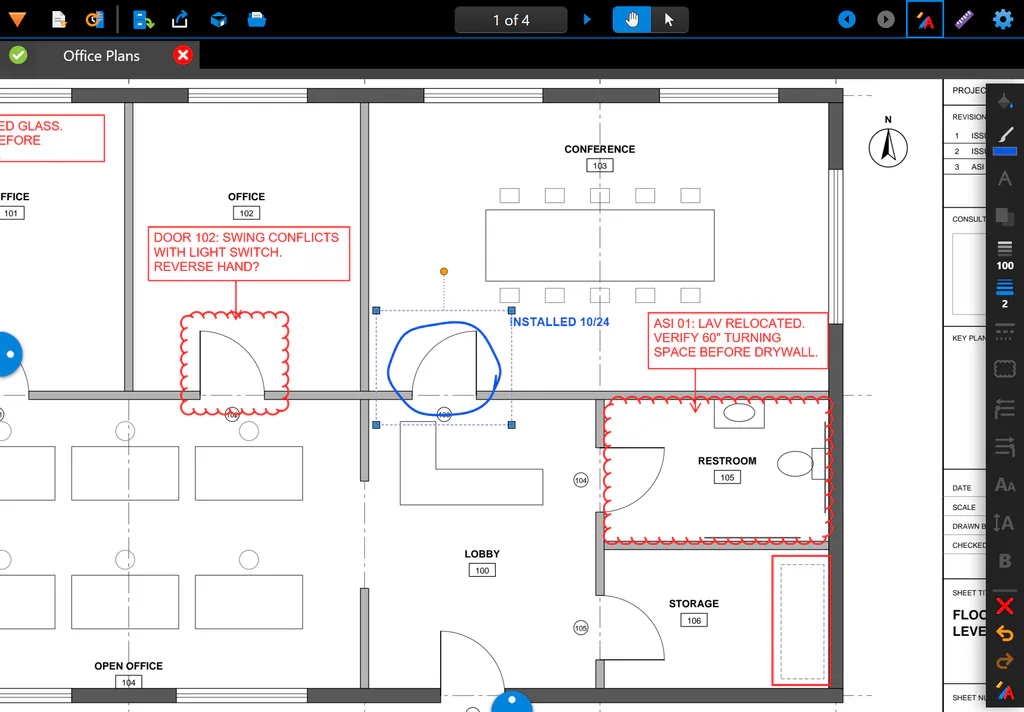
A pen markup circled around a door is selected; the Properties toolbar on the right shows its color, opacity and line width.
Tap any markup to change it later. Nothing is flattened until you say so.

Measure

Take it off the sheet, in real units

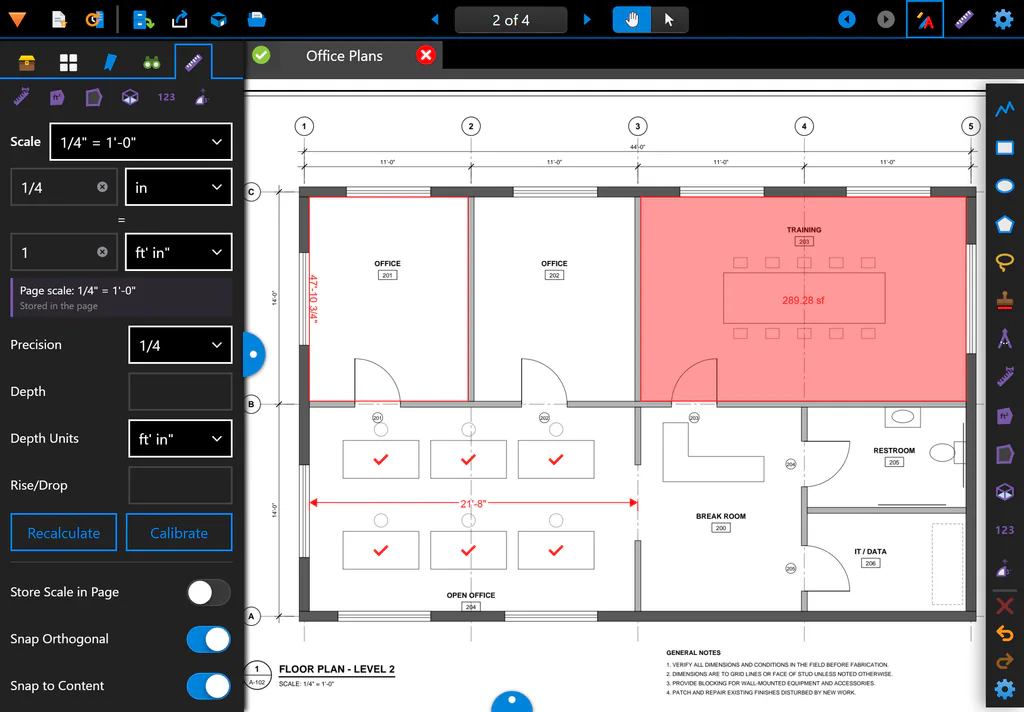
Set the scale once, from a known dimension or a standard architectural, engineering or metric scale. Then measure in the units your project uses.

  • Length, polylength, area, perimeter, volume, angle, radius, diameter and count
  • Values update the moment you reshape a measurement
  • Snapping to linework and square angles for clean takeoffs
  • A magnifier under your finger for exact points on a touch screen
A level 2 floor plan with a scale of one quarter inch to one foot: a shaded room area of 289.28 square feet, a perimeter, a length dimension and check-mark counts on six desks, with the scale panel open on the left.
Area, perimeter, length and counts on a sheet set to 1/4" = 1'-0".

Track

Every item, tracked to closed

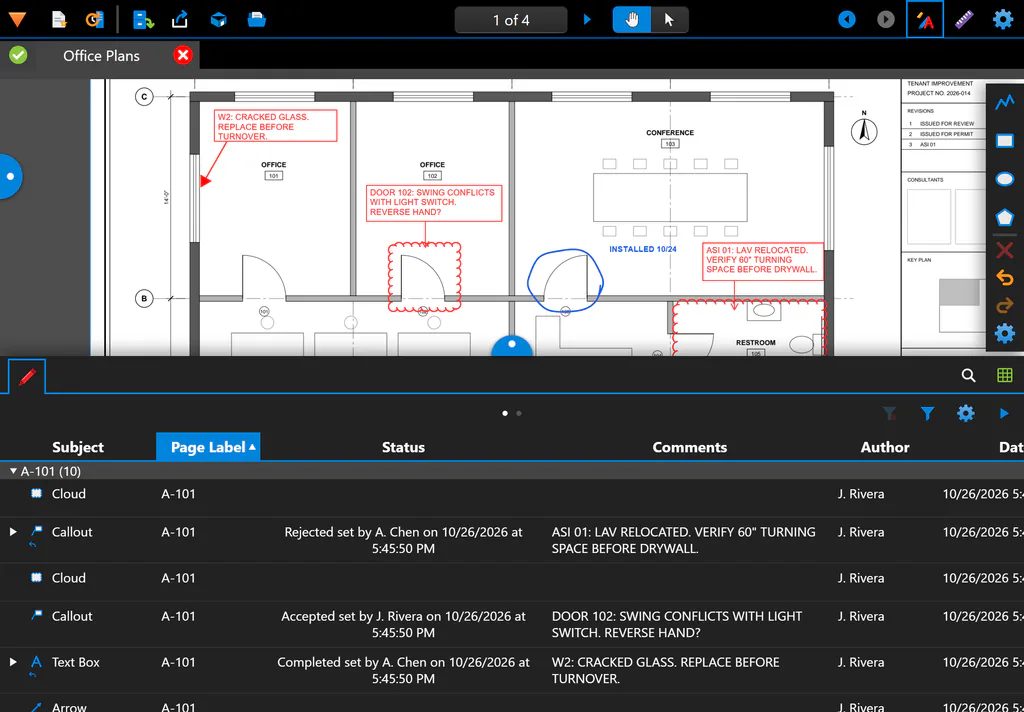
The Markups list turns each markup into a line item with an author, a date, a status and a comment thread. Filter it to what is still open and work down the list.

  • Accepted, Rejected, Completed or Cancelled, with who set it and when
  • Replies on every markup, so the discussion stays with the issue
  • Sort, filter and group by any column; pick the columns you see
  • A Markups Summary PDF for the next coordination meeting
The Markups list under the drawing, grouped by sheet A-101, with statuses such as Rejected, Accepted and Completed, who set them, and each markup's comment.
Status, comments and replies for every item on the set.

Tool sets

Your standards, one tap away

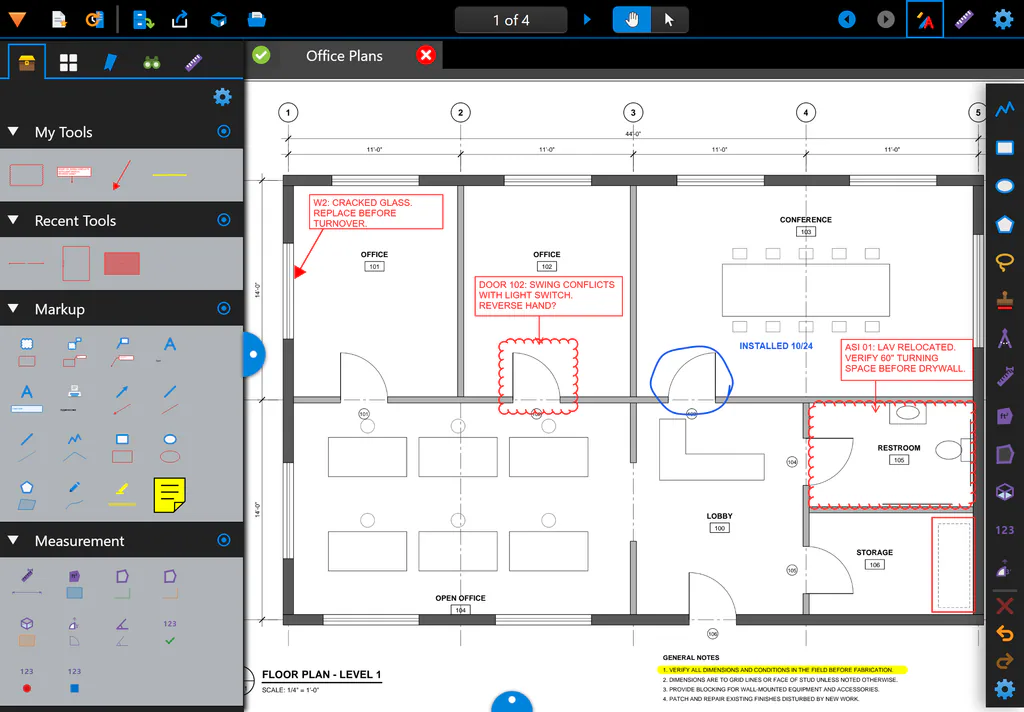
Save the markups you use every day, with their colors, line styles, text and scale settings, as ready-to-use tools. Bring the .btx tool sets you already have.

  • Long-press any markup to add it to My Tools
  • Recent Tools remembers what you just used
  • Built-in markup, measurement and stamp sets to start from
  • Import and export .btx tool set files
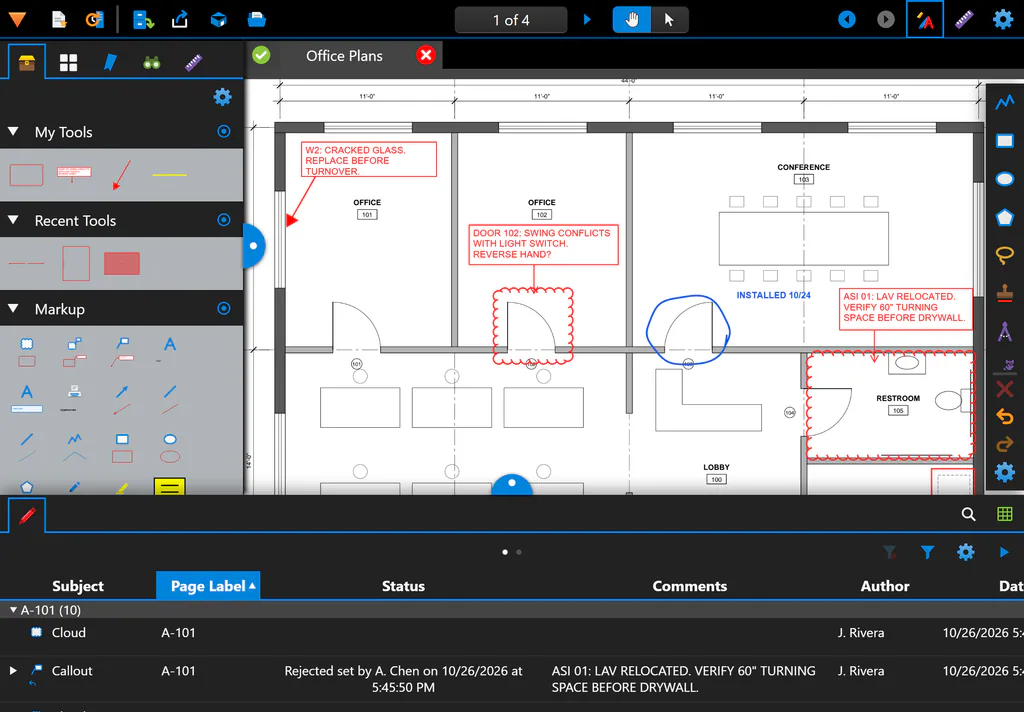
The Tool Sets panel on the left: My Tools holds a revision cloud, a callout, an arrow and a highlighter saved from the sheet; Recent Tools and the built-in Markup and Measurement sets follow.
My Tools, Recent Tools and the built-in sets.

The whole set

Find the sheet. Fix the set.

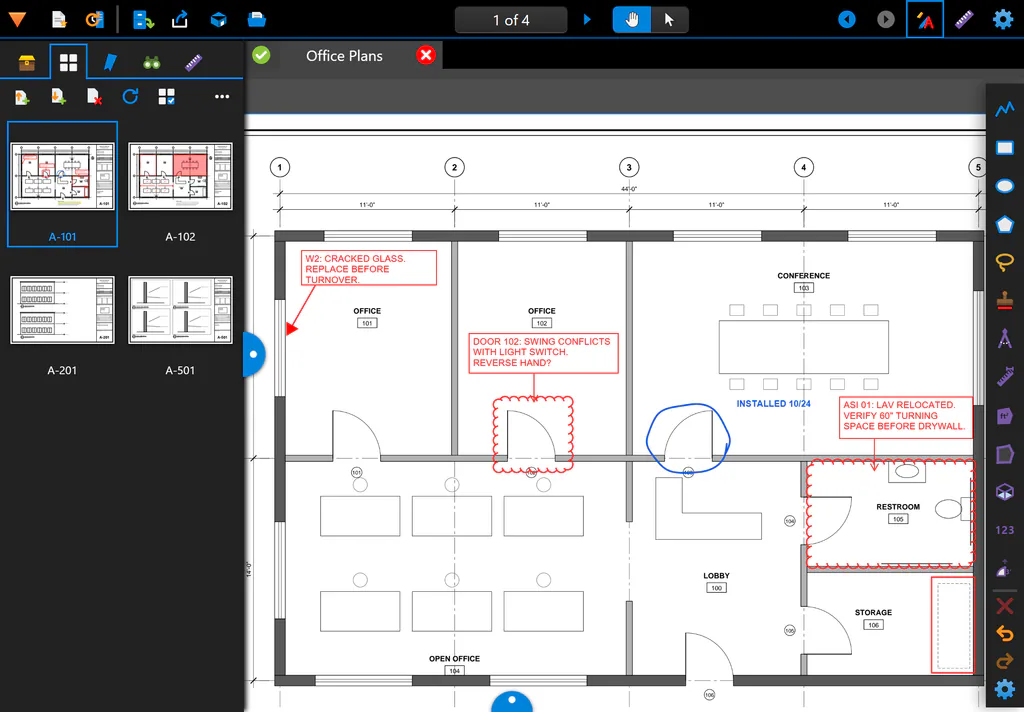
Jump between sheets by thumbnail, bookmark or text search, with page labels like A-101 everywhere. Big sets open sheet by sheet, so you can start reading right away.

  • Insert, rotate, reorder and delete pages
  • Fill in PDF forms
  • Flatten markups when it is time to issue, unflatten when it is not
  • Print, share or send to another app
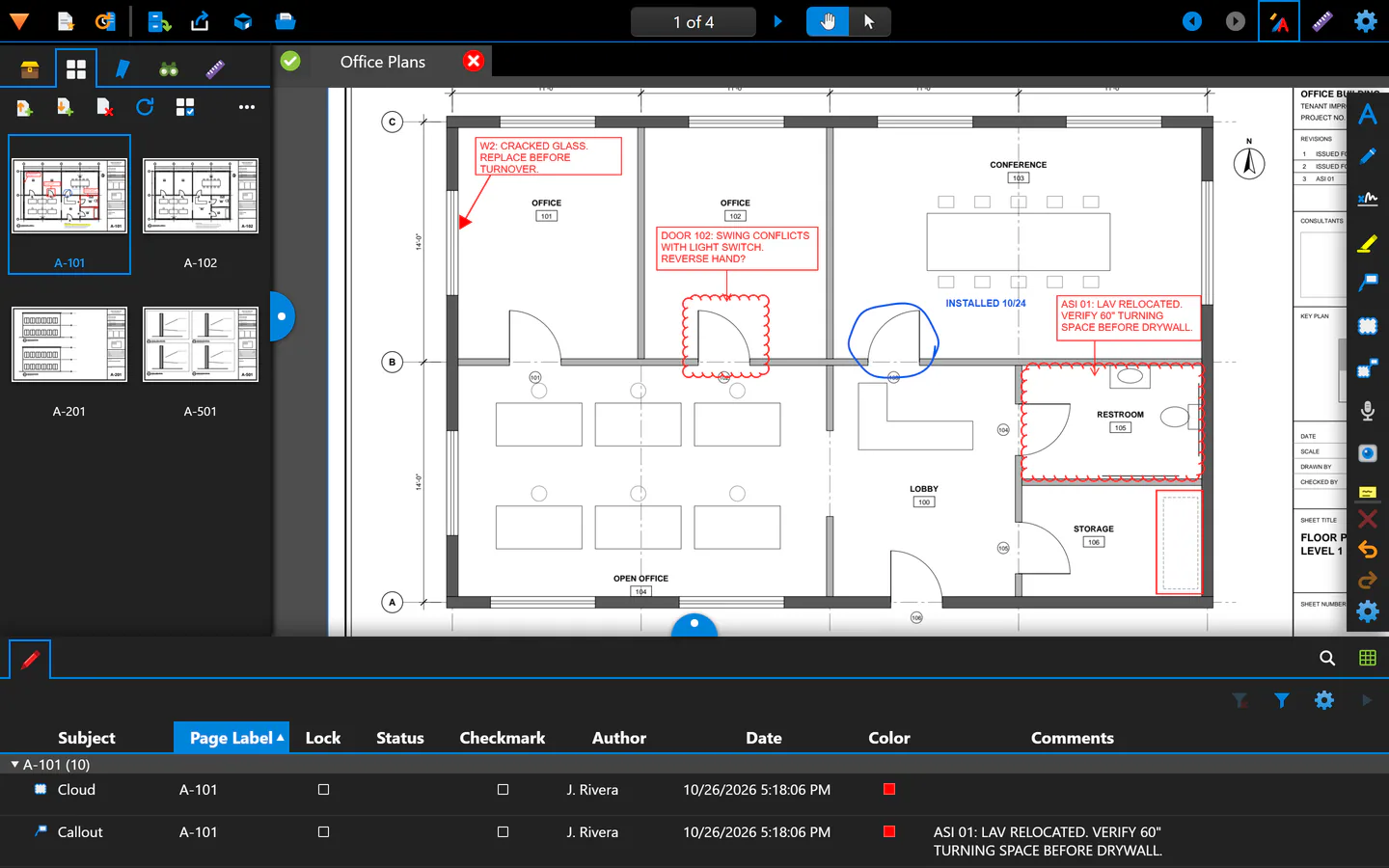
The Thumbnails panel showing four sheets, A-101, A-102, A-201 and A-501, next to the marked-up floor plan.
Thumbnails with page labels; page tools sit right above them.

Compatibility

Works with Bluebeam Revu

FIELDCHECK works with PDFs marked up in Bluebeam Revu. Markups you add are saved as standard PDF annotations that open as regular, editable markups, and markups created in Revu show up in FIELDCHECK with their properties and measurements.

  • Clouds, callouts, text, shapes, ink, stamps and measurements stay editable
  • Scales and measured values travel inside the file
  • Status, author, comments and replies stay with each markup
  • Tool sets go both ways as .btx files

Bluebeam and Revu are trademarks or registered trademarks of Bluebeam, Inc. FIELDCHECK is an independent product and is not affiliated with, sponsored by or endorsed by Bluebeam, Inc.

  1. In the field Mark it up Clouds, callouts, photos, measurements and statuses, right on the sheet.
  2. The file One standard PDF The markups are ordinary PDF annotations inside it. No sidecar files, no export step.
  3. At the office Pick up where the field left off Open the same PDF at the desk and keep working on the same markups. Changes made there come back to the field the same way.

Mobile, desktop and browser

Start on the tablet. Finish at the desk.

One app with the same tools and the same files everywhere. Carry the iPad on site, check a detail on your phone between floors, and close out on a Windows PC or in the browser back at the office.

FIELDCHECK in a desktop browser window: sheet thumbnails on the left, the marked-up floor plan in the middle and the Markups list docked below.
FIELDCHECK on an iPhone: the same floor plan zoomed in on the restroom cloud and callout, with the markup tools along the bottom.

What works where

FIELDCHECK features by platform
Feature iPad iPhone Android Windows Web
Mark up and measure
Markup tools: pen, highlighter, shapes, clouds, text, callouts, notes, stampsYesYesYesYesYes
Photo and voice-note markupsYesYesYesYesYes
Calibrated measurement and countsYesYesYesYesYes
Edit any markup's properties laterYesYesYesYesYes
Review and organize
Markups list: status, filters, comments, repliesYesYesYesYesYes
Markups Summary PDFYesYesYesYesYes
Tool sets, with .btx import and exportYesYesYesYesYes
Thumbnails, bookmarks, search and page toolsYesYesYesYesYes
Flatten markups, fill forms, print and shareYesYesYesYesYes
Files and storage
Works with no signalYesYesYesYes1Yes1
Your own cloud storage: SharePoint, OneDrive, Dropbox, Google Drive, Box, ShareFile, WebDAVYesYesYesYesYes
Open PDFs sent from other appsYes2Yes2Yes2Yes3Yes3
Documents listed in the Files appYes2Yes2NoNoNo
Input and layout
Draw with a pen, pan with your fingersYesApple PencilNoYesStylusYesPenYes4
Compact layout for phonesNoYesYesNoYes
Toolbar in the window title barNoNoNoYes5Yes5
  1. In the browser, after the first visit or once FIELDCHECK is installed from the browser.
  2. In the App Store and Google Play apps. Until those are published, use the web app on these devices.
  3. Drag and drop or Open File in any browser. Installed from Chrome or Edge, FIELDCHECK also takes PDFs from Open with and Share.
  4. On devices with a pen or stylus.
  5. When FIELDCHECK is installed from Chrome or Edge on a desktop.

Cloud storage

Open from your project folders. Save back to them.

Connect your company's SharePoint or OneDrive, Dropbox, Google Drive or Box account and work right out of the folders the project already uses. Files move directly between your device and your storage over an encrypted connection.

  • Mark files or folders for offline use before you head out
  • Changes made with no signal upload when you are back in range
  • Conflicting changes are flagged, never silently overwritten
  • Open PDFs from email, the Files app or any app with Open in or Share
  • SharePointTeam sites and document libraries
  • OneDriveWork and personal accounts
  • DropboxPersonal and team folders
  • Google DriveMy Drive and shared folders
  • BoxCompany accounts
  • And moreShareFile and WebDAV servers

Built for the field

No signal? Keep working.

  • Offline from the start

    Drawings live on the device. Open, mark up, measure and save in a basement or a dead zone.

  • Big sets, no waiting

    Large sets open sheet by sheet, so the one you need is readable while the rest loads.

  • No lost markups

    Unsaved work is kept in a recovery journal on the device. A crash or a dead battery does not wipe it.

  • Saves you can trust

    Changes are appended to the original PDF, and the result is checked before it replaces your file.

Security and privacy

Your drawings stay yours

Client drawings are confidential. FIELDCHECK never needs them to leave your hands or your company's storage.

For Google Drive on the web, Box and ShareFile, the provider requires a server-side sign-in step. FIELDCHECK's token service passes the one-time sign-in code to the provider and returns the tokens to your device; it does not store tokens or file data. Details are in the privacy policy.

On your device or in your cloud
Documents are stored on the device or in the storage account you connect. They never pass through FIELDCHECK servers.
Direct, encrypted connections
Files travel straight between the device and your storage provider. Sign-in tokens stay on the device and are deleted when you disconnect.
No tracking
No analytics, no advertising identifiers, no data sales. The camera and microphone switch on only when you add a photo, video or audio markup.
No lock-in
Everything you add is a standard PDF annotation. Your files open in any PDF software, with or without FIELDCHECK.

Pricing

Every tool, every platform, one price per user

No feature tiers: every plan gets the whole app. Buy online. Access details are emailed after purchase.

Draft pricing. Plans, prices and payment links are placeholders until they are confirmed.

Billing period

Pro

For an individual field engineer, inspector or superintendent.

Price TBDper user / month, billed annually
Price TBDper user / month
Buy now: Pro, annual billing

TODO: Stripe Payment Link (Pro, annual)

Buy now: Pro, monthly billing

TODO: Stripe Payment Link (Pro, monthly)

Access details are emailed after purchase.

  • 1 user
  • Every tool and platform listed below
  • TBD email support

Best for crews

Team

For a crew or project team buying several seats at once.

Price TBDper user / month, billed annually
Price TBDper user / month
Buy now: Team, annual billing

TODO: Stripe Payment Link (Team, annual, adjustable quantity)

Buy now: Team, monthly billing

TODO: Stripe Payment Link (Team, monthly, adjustable quantity)

Access details are emailed after purchase.

  • Choose the number of seats at checkout
  • One subscription and invoice for the team
  • TBD minimum seats and volume price
  • TBD priority email support

Company

For companies rolling FIELDCHECK out across projects and offices.

CustomTalk to us about seats and terms
Contact sales

TODO: sales email in site.json

  • Volume pricing
  • TBD invoicing and purchase orders
  • TBD help setting up your tool sets

Every plan includes

  • Markup tools: pen, highlighter, shapes, clouds, text, callouts, stamps and photos
  • Calibrated measurement: length, area, perimeter, volume, angle and count
  • Markups list with status, filters, comments and summaries
  • Reusable tool sets, with .btx import and export
  • Page tools: thumbnails, bookmarks, search, insert, rotate and reorder pages
  • iPad, iPhone, Android, Windows and the web
  • Works with no signal
  • Your own cloud storage: SharePoint, OneDrive, Dropbox, Google Drive, Box and more

Prices in USD, excluding applicable taxes. Access details are emailed after purchase.

Get started

From checkout to your first markup in three steps

  1. Pick a plan

    Choose a plan and pay online, or talk to sales about a company rollout.

  2. Check your inbox

    Access details are emailed after purchase. They work on every device you use.

  3. Open your first set

    Open a PDF or connect your storage, import your tool sets, and head out.

FAQ

Straight answers

Can the office edit what I mark up?

Yes. FIELDCHECK works with PDFs marked up in Bluebeam Revu. Markups you add are saved as standard PDF annotations that open as regular, editable markups, and markups created in Revu show up in FIELDCHECK with their properties and measurements.

Can I use it on my phone and my PC as well?

Yes. FIELDCHECK runs on iPad, iPhone, Android phones, tablets and Chromebooks, Windows PCs and tablets, and in Safari, Chrome and Edge. It is the same app with the same tools on each; phones get a compact layout. See what works where.

What if there is no signal on site?

Keep working. Drawings live on the device, so you can open, mark up, measure and save with no connection. Cloud files you marked for offline use stay on the device too, and your changes upload when you are back in range.

Where do my drawings live?

On your device, or in the cloud storage account you connect. FIELDCHECK does not upload your documents to its own servers and runs no analytics or tracking.

Which cloud storage can I connect?

SharePoint and OneDrive, Dropbox, Google Drive, Box, ShareFile and WebDAV servers. You can also open PDFs from email, the Files app or any app with Open in or Share.

Can I bring the tool sets I already use?

Yes. Import .btx tool set files and your tools show up in the Tool Sets panel with their settings. You can export your FIELDCHECK tool sets as .btx files too.

How do I set the scale before measuring?

Calibrate against a dimension you know, or pick a standard architectural, engineering or metric scale. Scales already stored in the PDF are picked up automatically.

I just bought FIELDCHECK. What happens next?

Access details are emailed after purchase. Then open FIELDCHECK on any of your devices and start with your first set.

Can I cancel or switch plans?

TODO (owner): cancellation, refunds and plan changes, matching the Stripe subscription settings.

Is there pricing for crews and whole companies?

Yes. With the Team plan you choose the number of seats at checkout. For a company-wide rollout, talk to sales: TODO: sales email (e.g. sales@fieldcheck.co)

Get started

Take the whole set to site.

Mark it up where you stand. Hand it back without retyping a thing.

Buy online. Access details are emailed after purchase.